KeePassPasskey#




Installation | User Guide | FAQ & Troubleshooting
A KeePass plugin that turns KeePass into a native Windows 11 passkey provider. Websites and apps that support passkeys work automatically - no browser extension required.
Requirements#
How it works#
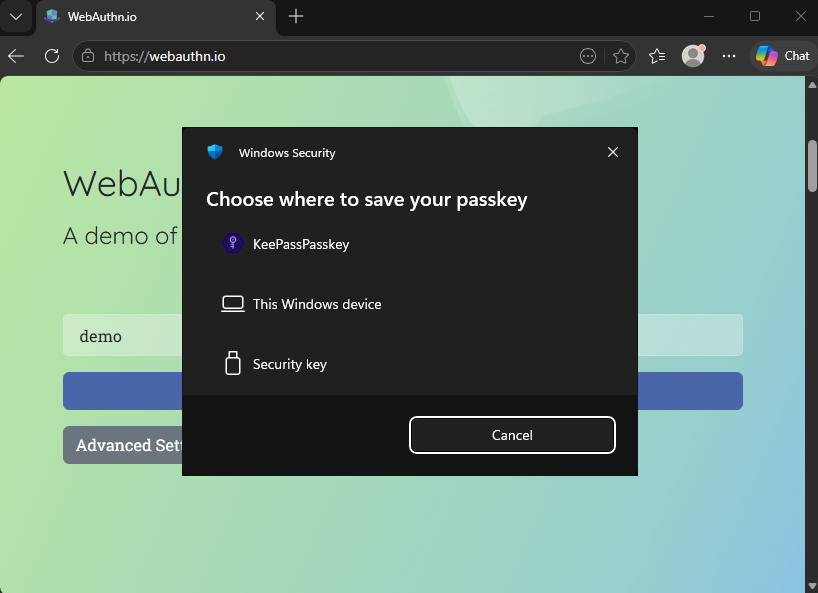
When a website asks for a passkey, Windows offers KeePassPasskey as a provider. You approve the request, and the passkey is created in your unlocked KeePass database as an ordinary entry. Signing in takes the same path, with the entry already there. Keys never leave your database file, and all cryptography runs locally.
Diagram: where a passkey request goes
%%{init: {'flowchart': {'useMaxWidth': false}}}%%
flowchart TB
    Site["`**Website or app**
you ask it for a passkey`"]
    Win["`**Windows**
offers your passkey providers`"]

    subgraph KPP ["KeePassPasskey"]
        Prompt["`**Passkey prompts**
create and sign-in, you approve`"]
        UI["`**App window**
status, settings, plugin install`"]
        Plug["`**KeePass plugin**
creates the key and signs with it`"]
    end

    DB[("`**Your KeePass database**
the passkey is a normal entry`")]

    Site -->|Windows WebAuthn API| Win
    Win -->|COM| Prompt
    Prompt -->|named pipe| Plug
    UI -->|named pipe| Plug
    Plug -->|KPEX_PASSKEY_* fields| DB
    Plug ==>|Windows credential cache| Win
You meet KeePassPasskey twice: as the prompt you approve during a request, and as the app window you open yourself for status, settings and installing the plugin. Both are the same installed app, started two different ways, and neither runs permanently.
So that Windows can offer your passkeys in its sign-in dialogs, the passkey metadata (site and user name, never the keys themselves) is written to the Windows credential cache as you open or save your database.
Entries use KeePassXC-compatible KPEX_PASSKEY_* fields, so KeePassXC can read them and vice versa.
Under the hood, Windows 11 routes passkey operations through a COM server registered as a plugin authenticator. This project is both sides of that:
- KeePassPasskeyProvider.exe: the MSIX-packaged provider. Windows cold-starts it per request and it self-exits when idle; the same binary hosts the app window and keeps the Windows credential cache in sync
- KeePassPasskey.dll: the KeePass plugin. Generates and uses the keys, and stores them in the open database
Installation#
Install the app, add the plugin to KeePass, enable the provider in Windows. Each option below does those three things a different way, so choose the one you like most. Afterwards the User Guide walks you through creating and using your first passkey.
Option A - Microsoft Store (recommended)#
- Install KeePassPasskey from the Microsoft Store and launch it.
- Follow the built-in Setup Guide: click Install plugin, check the detected KeePass folder, and click Install. Restart KeePass if it is running. Would rather copy the file yourself? The app can reveal the plugin file in Explorer instead.
- Continue the Setup Guide to open Windows Advanced passkey options and enable KeePassPasskey.
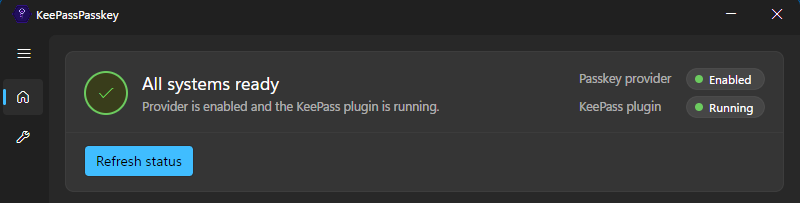
- Both status indicators in the KeePassPasskey app should show green.
The app updates automatically, the plugin does not. After the app moves to a newer version, KeePass offers to update the plugin at its next start so both halves match, see Updates.
Prefer the command line? winget install --name "KeePassPasskey" --source msstore installs the same package.
Option B - GitHub install with script#
- Download
KeePassPasskey-<version>.zipfrom the releases page and extract it. - Run
InstallMsix.batas Administrator, it trusts the included certificate, installs the MSIX, and starts the KeePassPasskey provider app. - In the app, click Install plugin, check the detected KeePass folder, and click Install. Restart KeePass if it is running. Would rather copy the file yourself? The app can reveal the plugin file in Explorer instead.
- Click Advanced Passkey Options in the app and enable KeePassPasskey.
- Both status indicators in the KeePassPasskey app should show green.
Option C - GitHub manual installation#
- Download
KeePassPasskey-<version>.zipfrom the releases page and extract it. - Trust the certificate: right-click
KeePassPasskey.cer→ Install Certificate → Local Machine → place it in the Trusted People store. - Install the MSIX: double-click
KeePassPasskeyProvider.Package_<version>_x64.msixand click Install. - Launch KeePassPasskey from the Start menu, click Install plugin, check the detected KeePass folder, and click Install. Restart KeePass if it is running. Would rather copy the file yourself? The app can reveal the plugin file in Explorer instead.
- Click Advanced Passkey Options in the app and enable KeePassPasskey.
- Both status indicators in the KeePassPasskey app should show green.
- (Optional) Remove the certificate: open certlm.msc → Trusted People → Certificates, find KeePassPasskey, and delete it. The certificate is only needed during installation.
Credential storage#
Passkeys are stored as standard KeePass entries using KeePassXC’s passkey field format:
| Field | Content |
|---|---|
KPEX_PASSKEY_CREDENTIAL_ID | Base64url credential ID |
KPEX_PASSKEY_PRIVATE_KEY_PEM | PKCS#8 private key (PEM) |
KPEX_PASSKEY_RELYING_PARTY | Relying party ID (e.g. github.com) |
KPEX_PASSKEY_USERNAME | User name from registration |
KPEX_PASSKEY_USER_HANDLE | Base64url user handle |
KPEX_PASSKEY_FLAG_BE | Backup Eligibility flag (1/0, default 1) |
KPEX_PASSKEY_FLAG_BS | Backup State flag (1/0, default 1) |
Credentials created here can be read by KeePassXC and vice versa. Three algorithms are supported: ES256 (EC P-256), EdDSA (Ed25519), and RS256 (RSA-2048). The algorithm is encoded in the PKCS#8 OID and requires no separate field, matching KeePassXC’s storage format exactly.
FLAG_BE and FLAG_BS correspond to bits 3 and 4 of the WebAuthn authenticatorData flags byte. BE=1 means the credential is eligible to be synced across devices; BS=1 means it currently is. Both default to 1, matching KeePassXC’s behaviour. The default for new passkeys is configurable and can be overridden per entry, see the user guide.
Security#
- All signing happens inside KeePass, so private keys are never sent over the pipe.
- The KeePass plugin verifies the connecting COM server before any request is processed: in production (MSIX-installed) it checks the client’s package family name and rejects non-MSIX processes.
- The named pipe is restricted by ACL to the current user at medium integrity, so other users and lower-integrity processes cannot connect.
AAGUID#
The AAGUID tells relying parties which authenticator created a passkey. KeePassPasskey’s is:
9addb28c-b46f-4402-808f-019651441ff3
Project structure#
src/
  KeePassPasskeyShared/         IPC protocol definitions and shared helpers
  KeePassPasskeyProvider/       COM server (.NET 10, x64)
  KeePassPasskeyPlugin/         KeePass plugin (.NET Framework 4.8)
  KeePassPasskeyProvider.Package/  MSIX packaging (wapproj)
scripts/
  Install-Provider.ps1          Build, sign, and install the provider for local testing (requires elevation)
  Publish-Package.ps1           Build Release, sign, and produce distributable zip
InstallMsix.bat End-user MSIX installer (shipped inside the release zip)Building#
Prerequisites#
| Requirement | Notes |
|---|---|
| Visual Studio 2026 | With .NET desktop development workload |
| Windows SDK 10.0.26100.7175+ | Required for wapproj build and code signing |
| .NET 10 SDK | For KeePassPasskeyProvider |
| .NET Framework 4.8 SDK | For KeePassPasskeyPlugin |
| KeePass.exe (2.54, compile reference) | Place at build\KeePass.exe - minimum supported version, used only for compilation |
| KeePass.exe (current, for debugging) | Place at build\KeePass\KeePass.exe - your installed/current version, used to launch KeePass during development |
# Compile-time reference - KeePass 2.54 (minimum supported version)
Copy-Item "path\to\KeePass-2.54\KeePass.exe" build\

# Debug/run target - your current KeePass installation
Copy-Item "C:\Program Files\KeePass Password Safe 2\KeePass.exe" build\KeePass\
Then run the build script as Administrator - builds the MSIX, signs it, and installs:
.\scripts\Install-Provider.ps1 -Configuration ReleaseCopy the DLLs from build\Release\ to a KeePassPasskeyPlugin folder inside your KeePass Plugins folder (e.g. C:\Program Files\KeePass Password Safe 2\Plugins\KeePassPasskeyPlugin\) and (re)start KeePass. Then click Advanced Passkey Options in the app and enable KeePassPasskey.
Manual registration (CLI alternative)#
If auto-registration fails, you can register manually:
KeePassPasskeyProvider.exe /register
KeePassPasskeyProvider.exe /status   # verify
Then open Settings manually: Settings → Accounts → Passkeys → Advanced Options → enable KeePassPasskey.
License#
Copyright © 2026 Uwe Kögel
This program is free software: you can redistribute it and/or modify it under the terms of the GNU General Public License as published by the Free Software Foundation, either version 3 of the License, or (at your option) any later version.
This program is distributed in the hope that it will be useful, but WITHOUT ANY WARRANTY; without even the implied warranty of MERCHANTABILITY or FITNESS FOR A PARTICULAR PURPOSE. See the GNU General Public License for more details.
You should have received a copy of the GNU General Public License along with this program. If not, see https://www.gnu.org/licenses/.
See LICENSE for the full license text.